How to use NVS Connect
NVS Connect is where you see your NuVision jobs, rentals, booth Wi-Fi, quotes and messages — on your phone or computer.
1Signing in
The first time
NuVision sends you a welcome email with a link. Open it, create a password, and you're in.
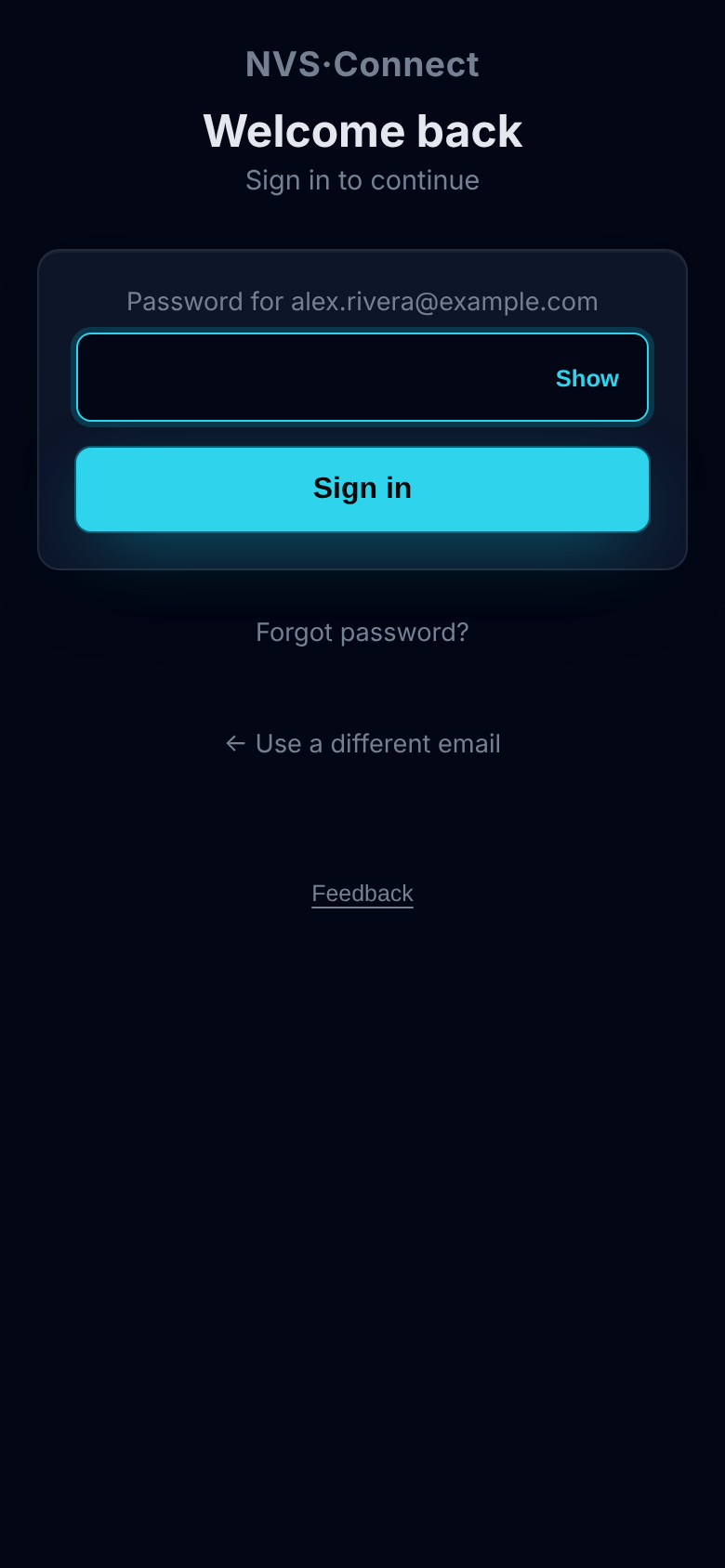
No email? Go to nvsconnect.nuvision.tech, type your work email and tap Continue. If you haven't set a password yet, we email you a one-time set-up link (it works for 24 hours).
Every time after
- Type your email and tap Continue.
- Type your password and tap Sign in.
Forgot your password? Tap Forgot password? on the password screen and we'll email you a reset link. Use it within 15 minutes.
2Put it on your phone
NVS Connect works in any web browser. On your phone you can add it to your Home Screen, so it opens like an app and can notify you.
iPhone or iPad (Safari)
- Open nvsconnect.nuvision.tech in Safari and sign in.
- Tap the Share button, then Add to Home Screen.
- Open NVS Connect from the new icon from now on.
Android (Chrome)
- Open nvsconnect.nuvision.tech in Chrome and sign in.
- Tap the ⋮ menu, then Install app or Add to Home screen.
Turn on notifications
Open Messages and tap Turn on on the "Get notified on this phone" card, then allow notifications. You'll get a pop-up when someone messages you. The pop-up only says who it's from, so the message itself stays private in NVS Connect. On iPhone, this only appears when you open NVS Connect from the Home Screen icon.
3Your dashboard
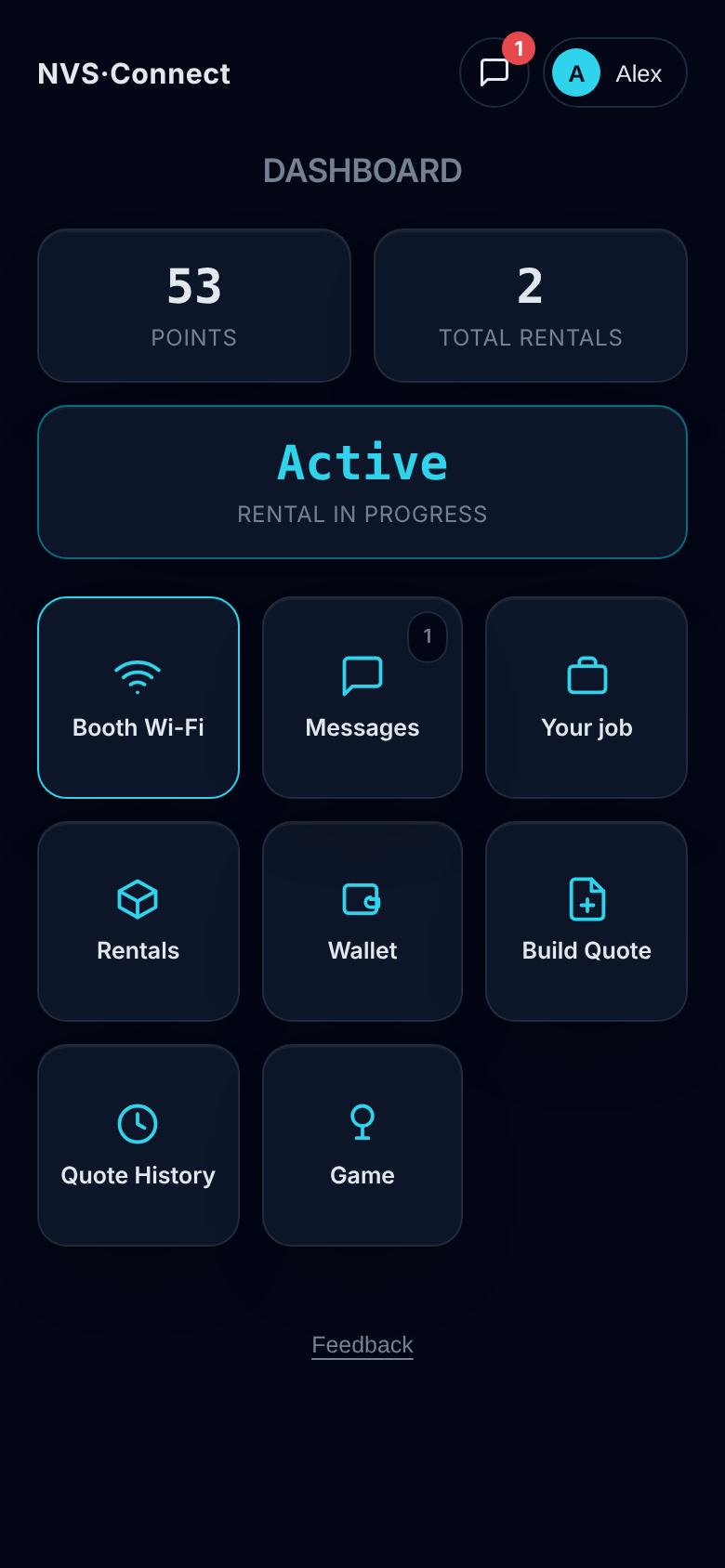
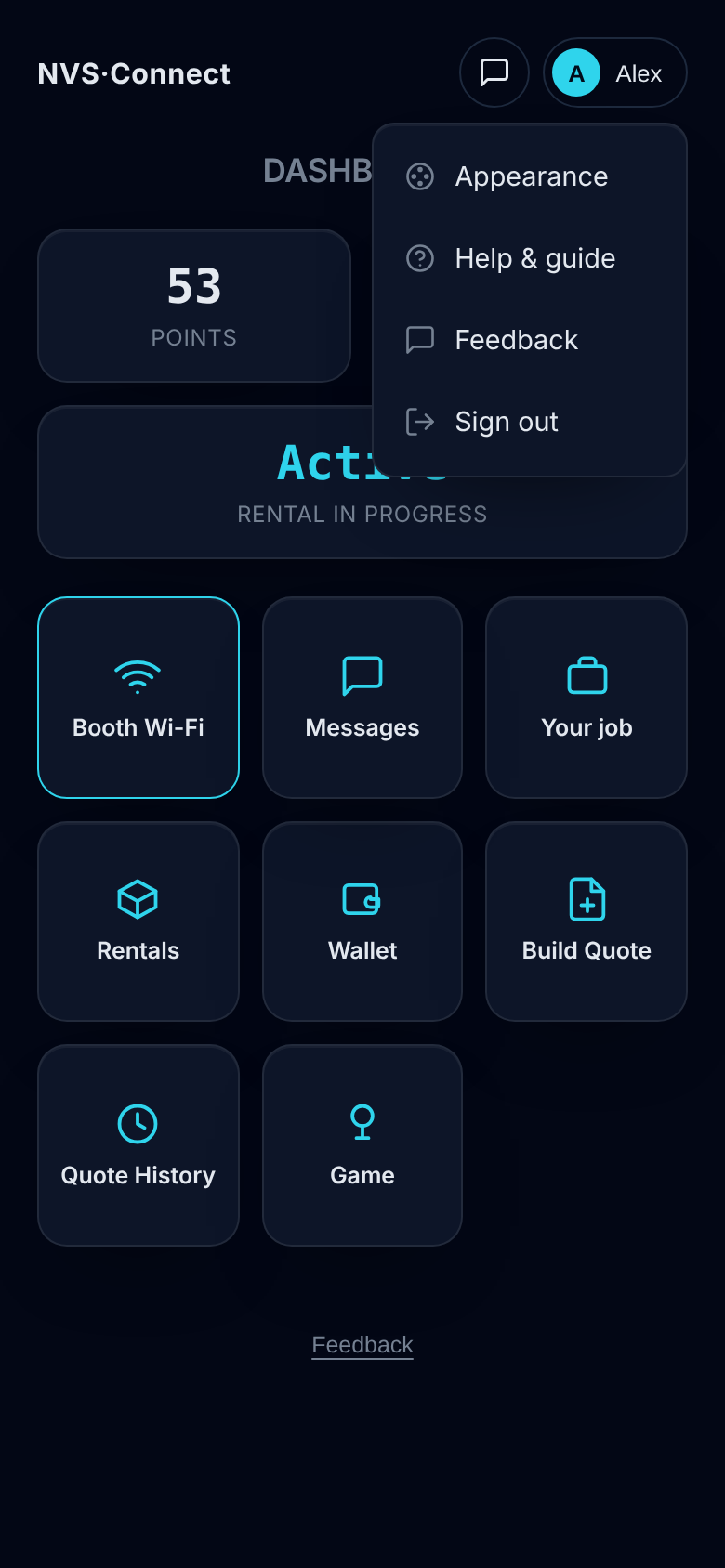
After you sign in you land on the dashboard. The top shows your points and whether a rental is active. Tap a tile to go somewhere:
- Booth Wi-Fi: your network name, password and QR code (shows while you have a rental with Wi-Fi).
- Messages: talk with the NuVision team. A red number means unread messages.
- Your job / Jobs: the shows you're working on with us.
- Rentals: current and past equipment rentals.
- Wallet: your points.
- Build Quote and Quote History: ask for a quote, see past quotes.
- Game: a quick game that can earn a few points.
Any page has ← Dashboard at the top to bring you back.
4Your job
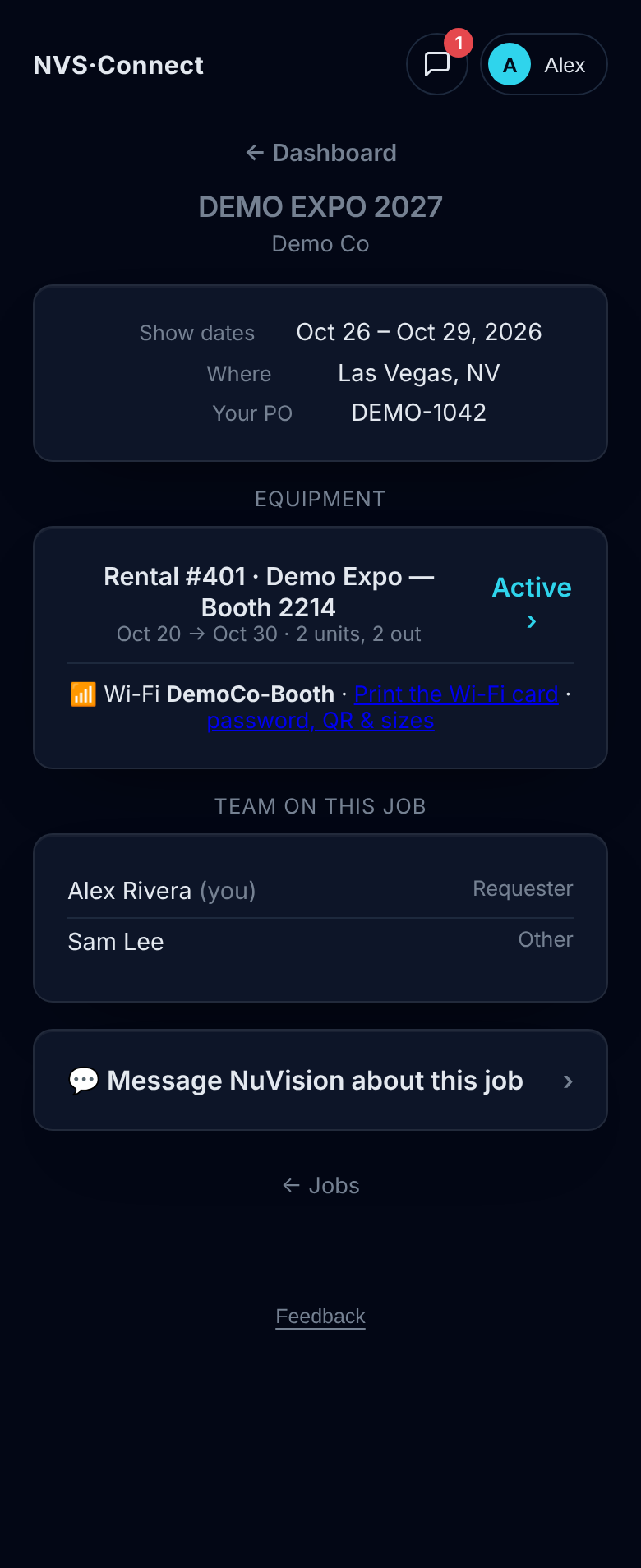
A job is one show or event we're supporting for you. Its page shows:
- Show dates, location and your PO number.
- The quote for the job, with its line items and a PDF to download. If you're not the person the quote was made for, you'll see "Quote on file" instead.
- The equipment rentals for that show, with a shortcut to the Wi-Fi card.
- Files we've shared with you (network plans, documents). Tap to download.
- Who from your team is on the job.
- Message NuVision about this job, for questions about that show.
5Rentals
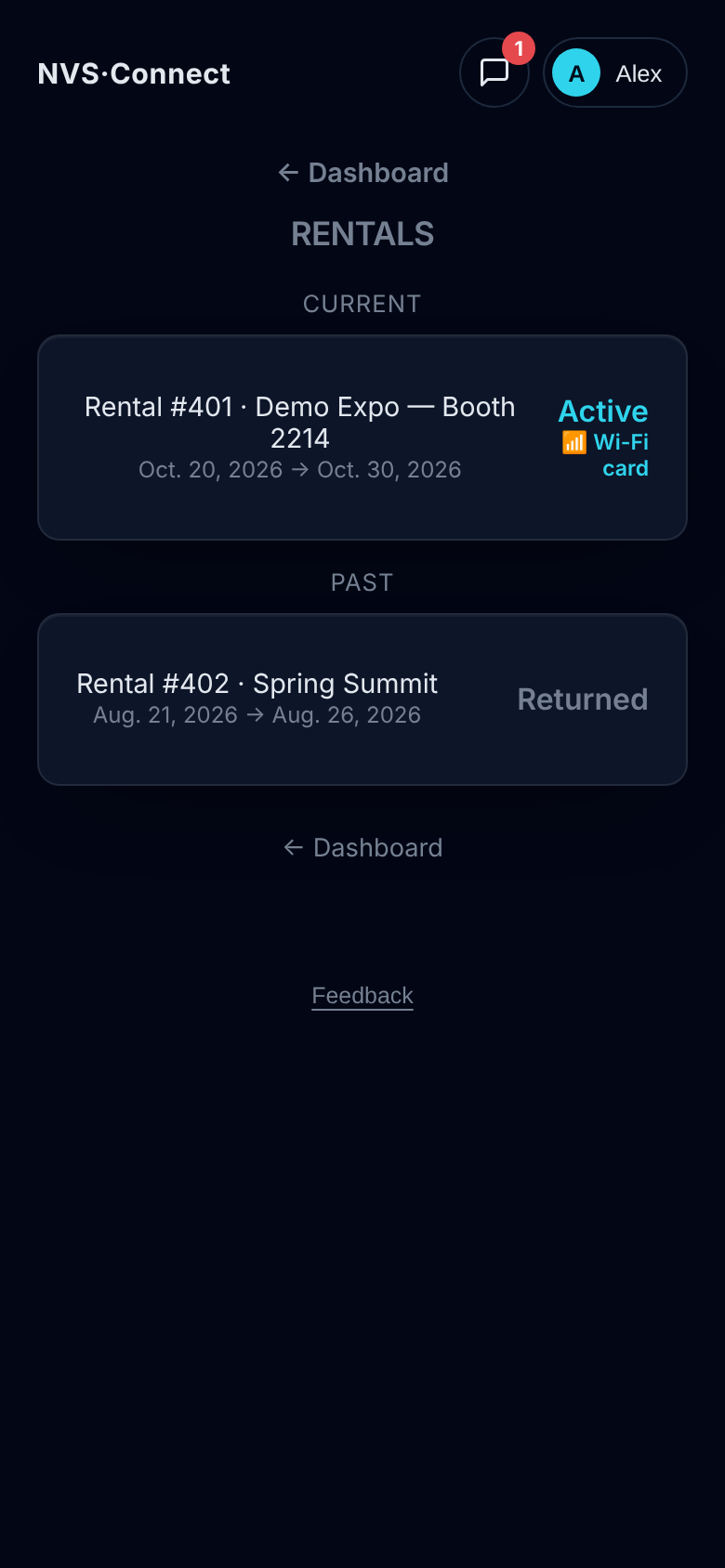
Rentals lists your current rentals at the top and past ones below. Tap one to see:
- Its status (for example Active or Returned), dates and event.
- The equipment on it, and whether each piece has shipped (Checked out).
- The booth Wi-Fi section (next).
- Message NuVision about this rental.
6Booth Wi-Fi
When your rental includes Wi-Fi, its page shows the network name, password and a QR code. Guests can scan the code with their phone camera to join.
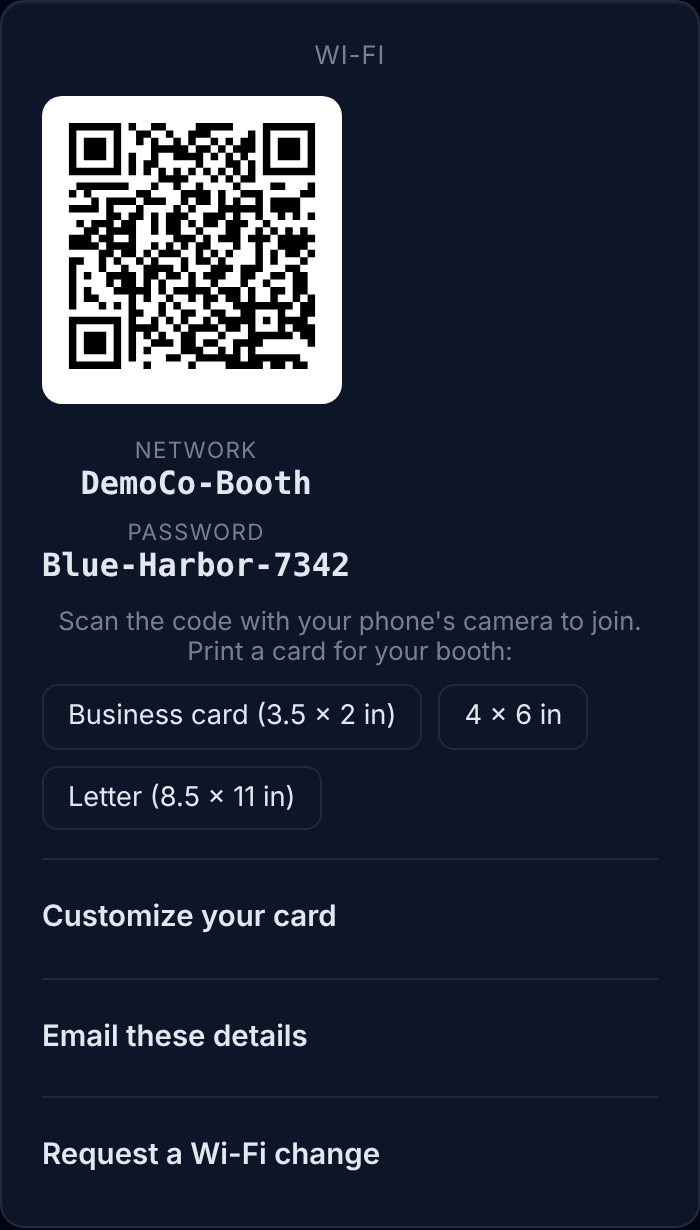
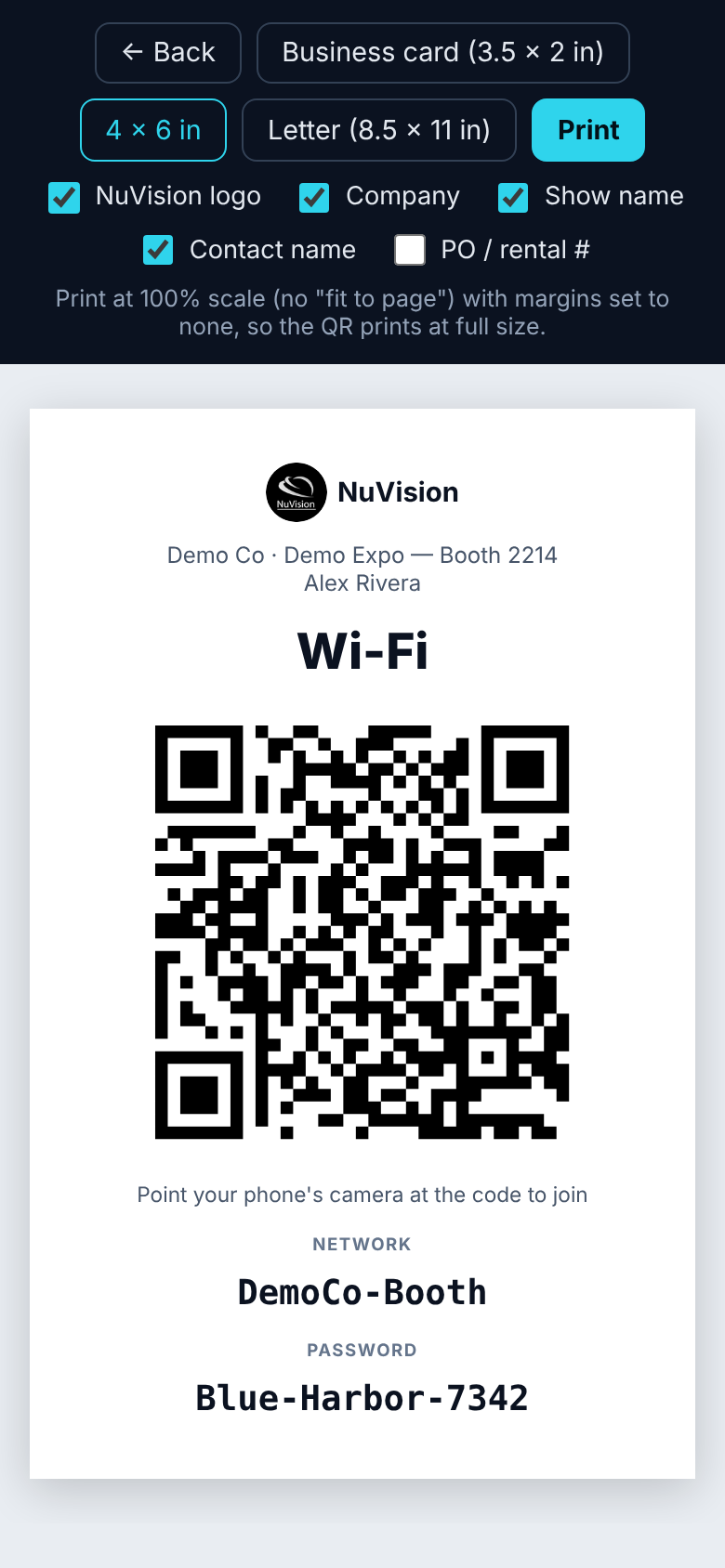
- Print a card: pick a size (business card, 4×6 or letter) and print it for your booth.
- Customize your card: add your logo, brand color, a headline and a short message.
- Email these details: send the network and password to your staff. You can list several addresses, separated by commas.
- Request a Wi-Fi change: ask for a different network name or password. The page shows when we've made the change. Reprint your card afterward so it matches.
7Messages
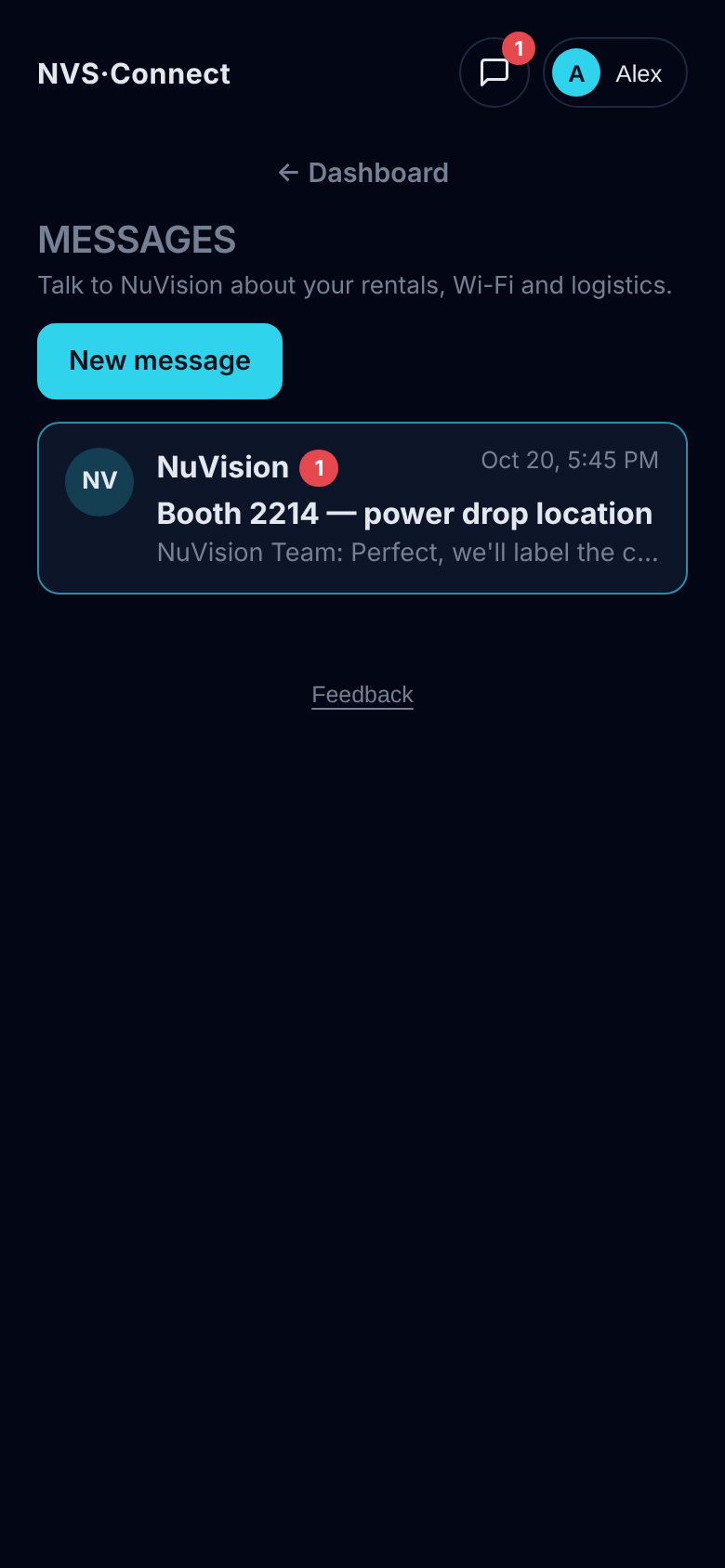
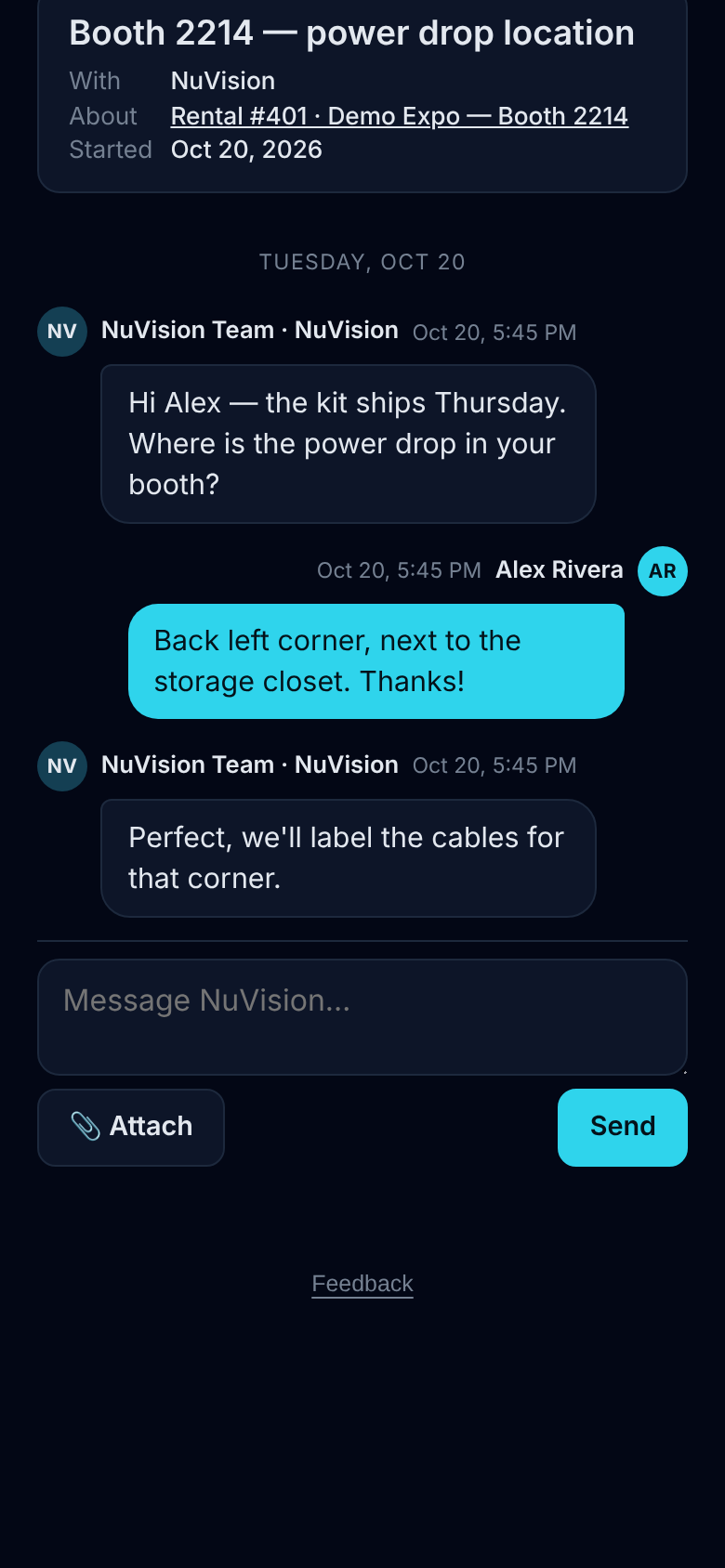
- Tap New message to start a conversation with the NuVision team, or open an existing one to reply.
- Tap Attach to add a photo or PDF (for example a booth layout or a picture of the power drop).
- Conversations about a rental or job are linked to it, so everyone has the details.
- We also post updates here, such as when your equipment ships.
8Quotes
Ask for a quote
- Tap Build Quote.
- Check your name and company, and add a project or show name.
- Choose whether it ships or is still TBD.
- Search or browse products, and set how many of each.
- Tap Request Quote. It goes straight to NuVision and we follow up.
See your quotes
Quote History lists your quotes. Search by show, quote number or item. Tap the ☆ to star the ones you use often (starred quotes stay at the top).
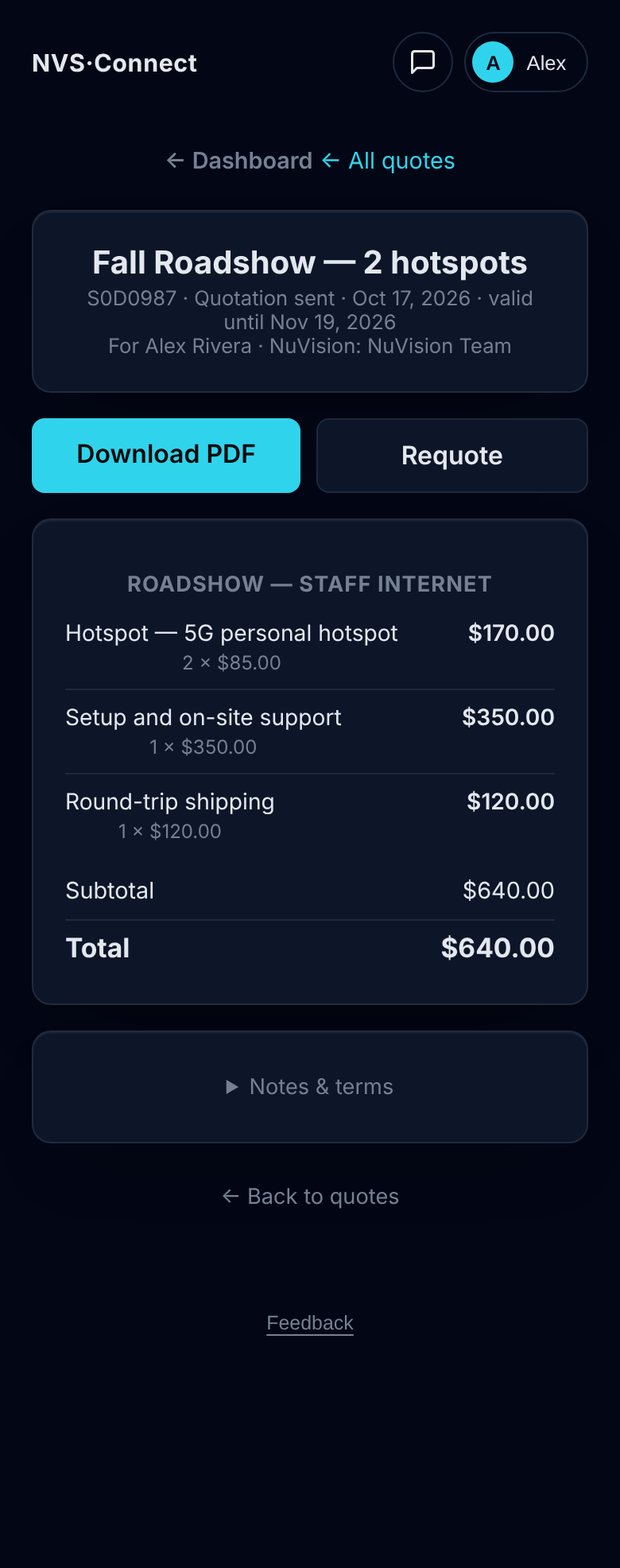
Open a quote to see every line and the total, then:
- Download PDF: the official quote.
- Requote: start a new quote with the same items. Change what you need and send. The old quote isn't changed.
9Wallet & points
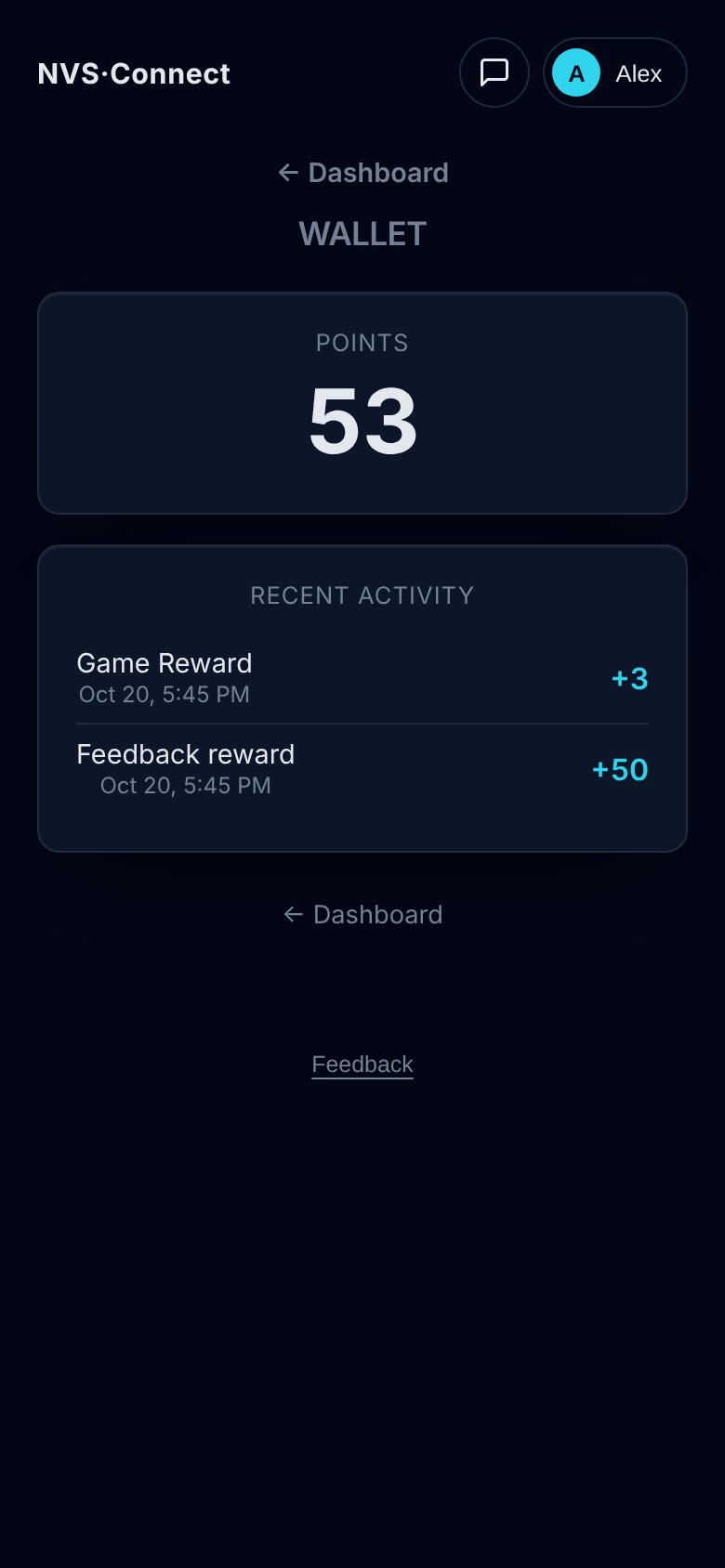
Your Wallet shows your points and how you earned them. Ways to earn:
- Feedback we use: when your suggestion or bug report leads to a change, we add points.
- Game: a win earns a point (up to 5 a day).
Your points are private. Only you and NuVision see them.
10Feedback
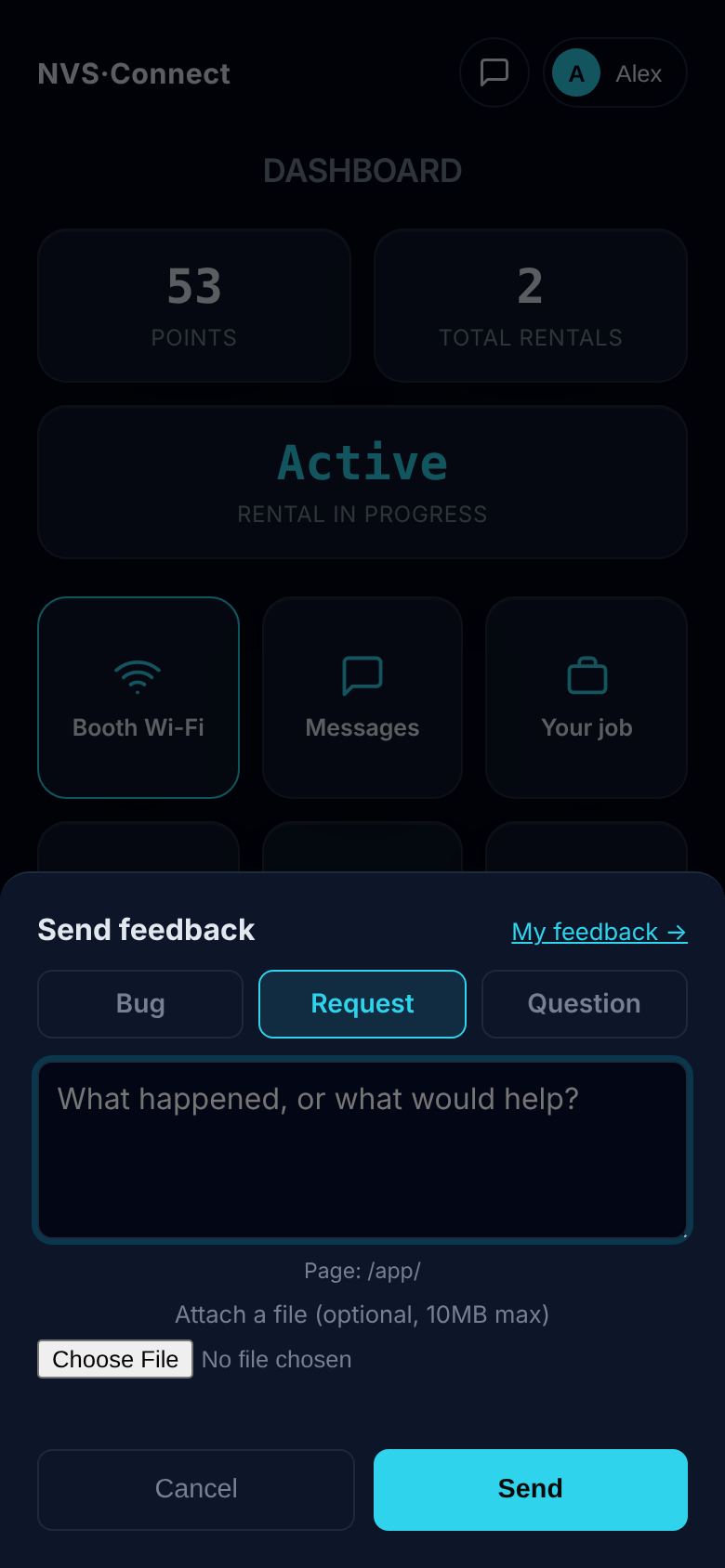
- Tap Feedback at the bottom of any page (or in your account menu).
- Choose Bug, Request or Question, and tell us what happened or what would help.
- Optionally attach a screenshot or file (up to 10 MB), then tap Send.
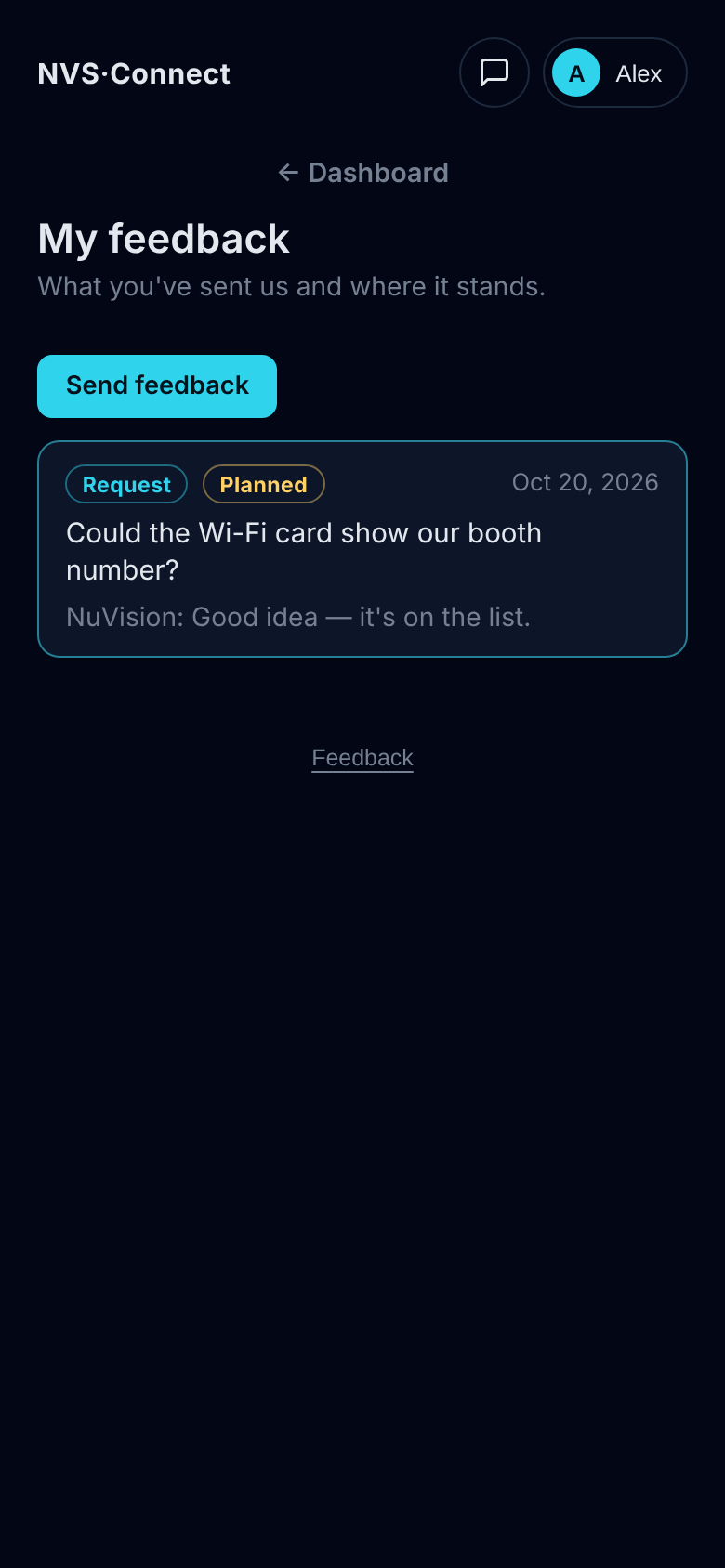
Tap My feedback → to see everything you've sent and where it stands: New, Planned, Done and so on, with any note from us.
11Your account
Tap your name in the top-right corner for:
- Appearance: choose a dark or light color theme.
- Feedback.
- Sign out: do this on a shared computer.
The speech-bubble icon next to your name opens Messages.
12Common questions
- I don't see a job or rental I expected.
- You see the jobs you've been added to. Message us and we'll add you, or check that you signed in with your work email.
- My welcome or set-up link doesn't work.
- Links expire for your security. Go to the sign-in page, type your email and tap Continue to get a fresh one.
- Can a coworker get access?
- Yes. Ask us and we'll add them to the job. They'll get their own welcome email and password.
- I'm not getting notifications on my iPhone.
- Open NVS Connect from the Home Screen icon (not Safari), go to Messages and tap Turn on. Then check iPhone Settings → Notifications → NVS Connect.
- Who do I contact?
- Send us a message in NVS Connect. That's the quickest way to reach the whole NuVision team.
NVS Connect is updated often. This guide is updated with it. The date at the top shows the latest version.